The application development process involves multiple design layers: conceptual, logical, and physical models. To move from one layer to another, you derive a new model from an existing model. For example, from logical to physical.
This process maintains the foundational concepts while adapting them to the target design layer.
You can derive models in the following scenarios:
-
Multiple physical models from a logical model: Create physical models for different target databases from a single logical model.
-
Physical model from a logical model: Customize the physical model for a specific target database and version.
-
Logical model from another logical model.
-
Conceptual model from another conceptual model.
-
Conceptual model from a logical model and vice versa.
The source model is the model you open before you start the wizard. The target model is the new model you create.
Derive a Model
Use the Derive Model wizard to create a new model and move between design layers. You can configure derive options before you start the derive process.
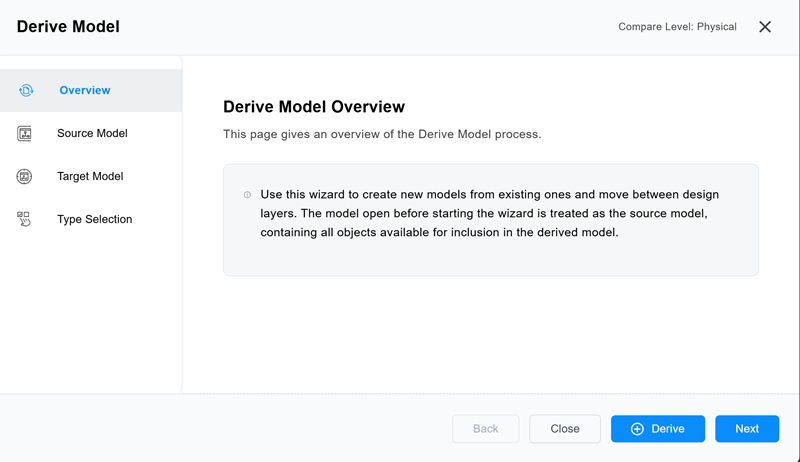
The Derive Model wizard includes four panes that let you:
-
View an overview of the derive model process in the Overview pane.
-
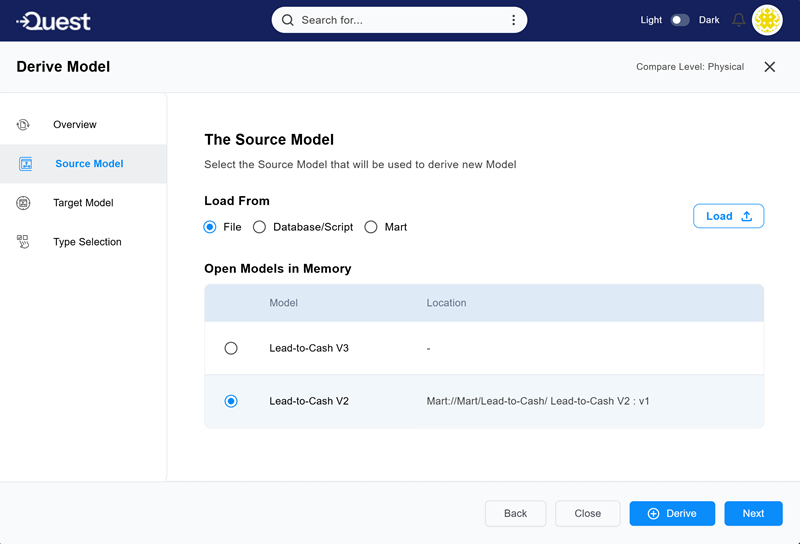
Select a source model from models open in memory or load one from a file in the Source Model pane.
-
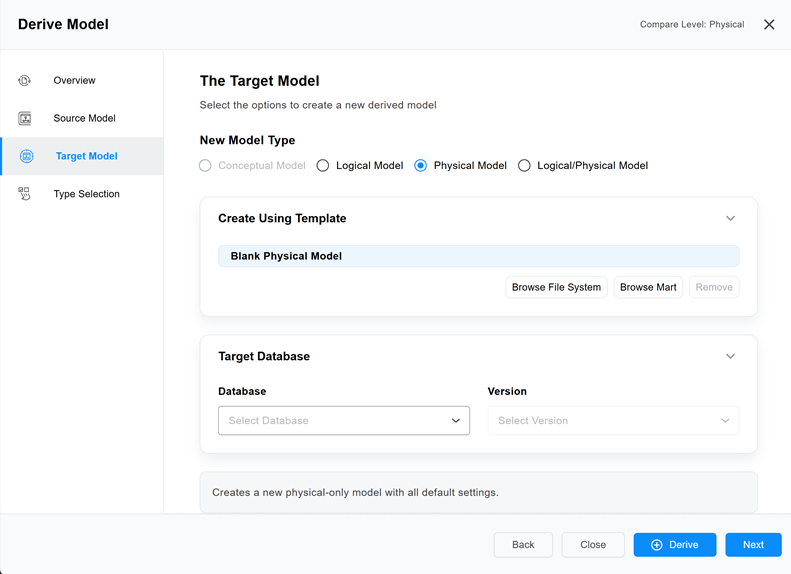
Assign a model type, and (for physical models) select the target database for the new model also in the Target Model pane.
-
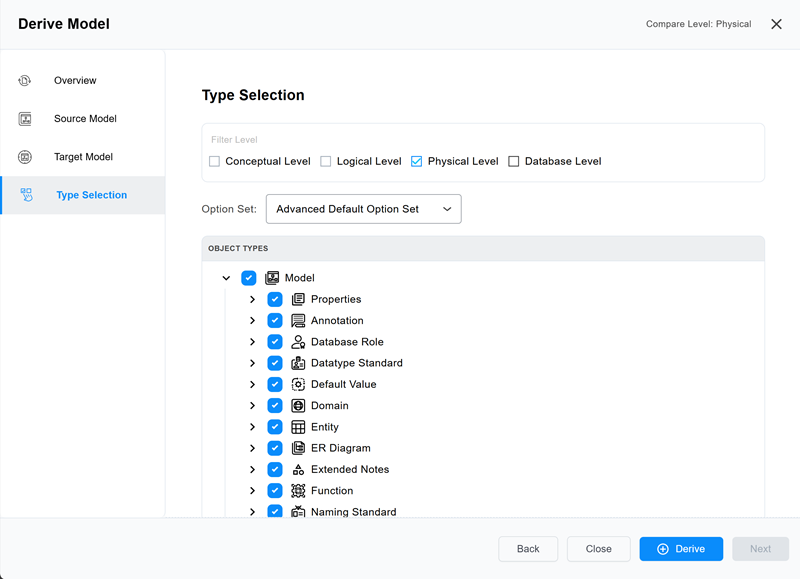
Apply filters to control the types of objects to derive in the Type Selection pane. Depending on the source model type, you can filter conceptual, logical, physical, or database-level objects and use a custom set of filter options.
Based on your selections, the derived model is generated as a separate model.
To derive a model, follow these steps:
-
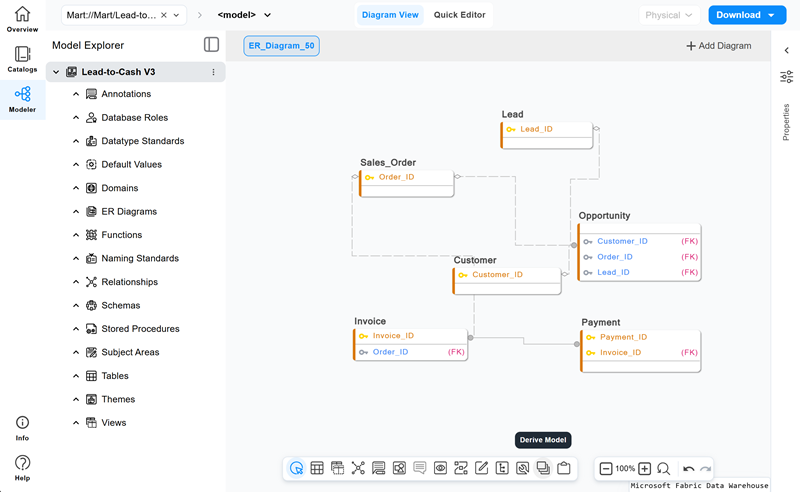
Open the model you want to use as a source model.
-
On the toolbar, select
 > Derive Model.
 The Derive Model wizard opens with the Overview pane active.
-
Select Source Model or Next.
The Source Model pane opens.
-
Select one of the following options:
-
Load From
-
File: This is selected by default, if you want to use this option, select Load to upload a JSON file.
-
Database/Script: Select this option, and then select Load to upload an SQL script file or connect to a database. This option opens the Reverse Engineer wizard.
-
Mart: Select this option, and then select Load to upload a model from Mart. The Mart window opens where you can select your model.
You can skip this step and keep the default selection, or pick another model open in memory.
-
-
Open Models in Memory
Displays the name and location of models you have open in the current modeling session. The model you have open when you start the Derive Model wizard is selected by default.
-
-
Select Target Model or Next.
The Target Model pane opens.
-
Work with the following options:
-
New Model Type
Select a model type that you want to derive. Available options include Conceptual, Logical, Physical, and Logical/Physical, depending on the allowed derivation scenario.
-
Create Using Template
Select a template for the new model. Use Browse File System or Browse Mart to locate an existing template, or use the default blank model.
-
Target Database
Select a model from the models open in the current modeling session. The model that was open when you started the Derive Model wizard is selected by default.
-
-
Select Type Selection.
The Type Selection pane opens.
-
Work with following options:
-
Filter Level
Select the filter level to derive to the new model. Only the filter options applicable to the selected target model type are available. For example, if the target model is a physical model, the logical filter is unavailable.
-
Option Set
Select the objects and properties to include in the derived model. Open, modify, delete, or create an option set, or select a preset option set. The Advanced Default Option Set includes all objects and properties for the selected derive level. The Standard Default Option Set and Speed Option Set include fewer objects and properties. The Object Types section updates to reflect the selected option set.
-
-
Select Derive.
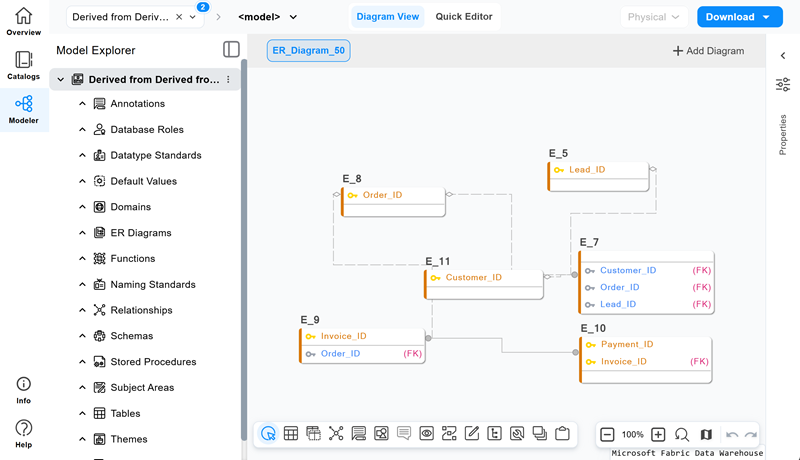
The derived model opens.
Derive a Model Using AI
Instead of using the Derive Model wizard, you can derive a model from the AI Copilot Conversation pane using a plain-language prompt.
To derive a model using AI, follow these steps:
-
Open the source model.
-
In the AI Copilot Conversation pane, enter a prompt that specifies the model type and target database. For example,
Derive a physical Snowflake model from this model.
AI creates the derived model as a separate model. The source model remains unchanged.
The derived model is linked to its source model through vertical lineage. For more information, refer to the View and Trace Lineage topic.